Business Rules Hierarchy
Business Rules are a set of directives used to intelligently find MakeGoods and ADUs. These rules can be approved by the Buyer to automate the revision workflow.
You can use the business rules wizard to navigate between different categories of the business rules.
Approvals
In this section, the configurations selected by the seller for the business rules and spots approval are displayed.
Buyer Spots Approval
This section is for all direct orders where the offers will be entered in EOS for buyer approval.
Offered MGs
- Auto-approve all MGs: All eligible MakeGoods are approved automatically on EOS on behalf of the buyer.
- Auto-approve standard rule MGs only: MakeGoods following standard rules are auto-approved, while those under relaxed rules need your review on EOS.
- Manual review required for all MGs: All MakeGoods need your review.
Offered ADUs
- Auto-approve all ADUs: All eligible ADUs are approved automatically on EOS.
- Auto-approve standard rule ADUs only: ADUs following standard rules are auto-approved, while those under relaxed rules need your review on EOS.
- Manual review required for all ADUs: All ADUs need your review on EOS.
Offered Bonus
- Auto-approve all Bonuses: All eligible bonus spots are approved automatically on EOS.
- Auto-approve standard rule Bonuses only: Bonus spots following standard rules are auto-approved, while those under relaxed rules need your review on EOS.
- Manual review required for all Bonuses: All bonus spots need your review on EOS.
Crediting ADUs over 100% delivery
- Auto-credit all extra ADUs: All eligible ADUs (bound to be over-delivered) are credited automatically on EOS on behalf of the buyer.
- Auto-credit extra ADUs meeting standard rules only: ADUs following standard rules are credited automatically, while those under relaxed rules need your review on EOS.
- Manual review required for all extra ADUs: All ADUs need your review for crediting on EOS.
Daypart Restrictions
Day & DP Restrictions

You can select the restricted time to fetch Makegoods and ADUs within the daypart. You have the option to select individual days and specific time within those days to set the restrictions. To make things easier, you can copy either individual or entire daypart restrictions from the MG column to ADU column, and vice versa.
The daypart restrictions update automatically based on traffic, while custom advertiser and order business rules require manual review according to your requirements.
Equivalent & Higher Dayparts
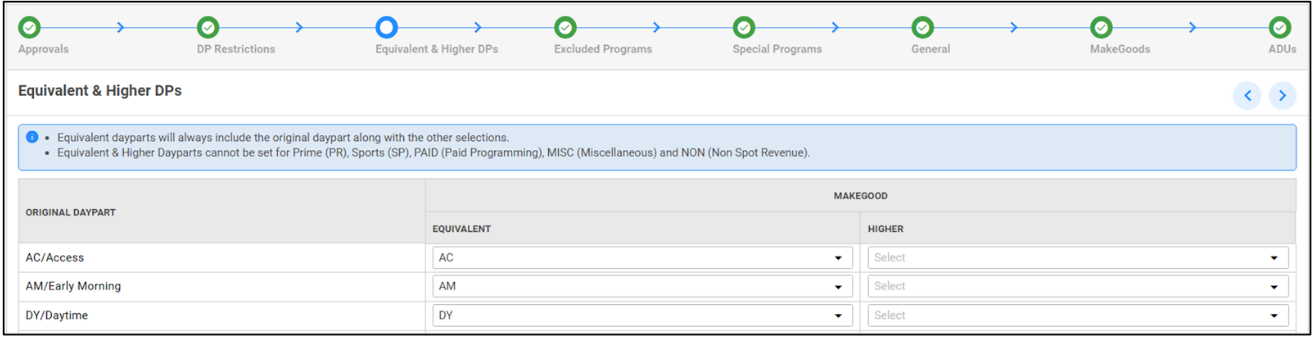
You can set the equivalent and higher dayparts used to place Makegoods in this section.
In case of copying business rules across stations, only the MG and ADU rules can be copied. The business rules related to Dayparts and Programs can't be copied across stations.
Excluded Programs
You can exclude programs that should never be considered for MakeGoods and ADUs. These programs will not be considered to provide MakeGood or ADU offers based on the selection made. However, MakeGoods and ADUs within the same excluded program will still be permitted.
Special Programs
You can select Special Programs where you want the MakeGoods and ADUs to be provided within the same program. Only the selected program will be used to offer MakeGoods or ADUs for any preemptions within the chosen special programs.
General
-
'Measurement Agency': This rule will determine the audience estimates and posted data applied to advertisers, orders, and spots. It is only applicable to upcoming orders and those that haven't completed their first billing cycle. Updates at the station or advertiser level won't apply to in-flight or completed orders. MG/ADU offer estimates and spot-level details will reflect the agency selected here.
-
'Posting Type': You can select the category of posted audience data based on various time periods following a program's original broadcast, as provided by the ratings aggregator. All estimates involving the posted data will be computed using the data associated with the posting type selected by you. The posted data for each spot reflects the business rule applicable at the order level for that specific spot. At the order level, you can edit the posting type until the start of the flight period. After this point, the last saved posting type will be locked and disabled. At the station and advertiser level, this business rule remains open for edits, but changes at these levels will only be inherited by upcoming orders.
-
'Max spots allowed per half hour in OTO Program (includes booked spots, MG and ADU offers)': To find optimal MakeGoods in One-Time-Occurrence programs, you can set the maximum number of booked spots, MakeGoods and ADUs allowed for every half hour. This value will determine the default limits for various program durations. A buffer period of up to 7 minutes is allowed in the program duration limit.
3a. Max spots allowed per OTO Program for the following durations (includes booked spots, MG and ADU offers): To find optimal MakeGoods in One-Time-Occurrence programs, you can set the maximum number of booked spots, MakeGoods and ADUs allowed for various program durations. The default values are derived from the values set in rule no.2, based on the half hour rule. You can customize maximum spots for various program durations to prioritize your preference over the default half hour rule. The upper bound of the time duration will be considered while calculating the number of spots.
-
Max spots allowed per half hour in Strip Program (includes booked spots, MG and ADU offers): For Strip programs, you can define the maximum number of booked spots, MakeGoods and ADUs that can be allowed for every half hour on a daily and weekly basis. This value will determine the default limits for various program durations. A buffer period of up to 7 minutes is allowed in the program duration limit.
4a. Max spots allowed per Strip Program for the following durations (includes booked spots, MG and ADU offers): You can define the maximum number of booked spots, MakeGoods and ADUs that can be allowed for strip programs for various program durations on a daily and weekly basis. The default values are derived from the values set in rule no.3, based on the half hour rule. You can customize maximum spots for various program durations to prioritize your preference over the default half hour rule. The upper bound of the time duration will be considered while calculating the number of spots.
MakeGoods
- 'Generate MGs for Unresolved spots': This rule allows the seller to decide whether ANNA should find MakeGoods for unresolved spots. The same MakeGood rules applied to preemptions will be used for these spots as well. This rule can only be enabled at the station level.
- 'Allowed inventory': You can choose whether the MakeGoods should be found in the same Program as the pre-empted spot or in the same or equivalent and higher dayparts from the dropdown options. The equivalent and higher dayparts are set separately. Restricted Time bands and hiatus periods are honored by default.
- 'Time window': You can further define the time window for these MakeGoods and specify if you would like them to be found in the same week of the pre-empted spot or, in the original broadcast month, broadcast quarter, calendar month, calendar quarter or within the order's flight dates.
- 'Allowed days for MGs': You can choose whether you want weekday Makegoods for weekend preemptions and weekend Makegoods for weekday preemptions.
- Specific days for MGs: You can choose if you want ANNA to provide makegoods only on the specific booked days of the preemption or provide makegoods on the specific days booked in each week for the order. These two rules are mutually exclusive. The second rule is only applicable for rep orders.
- 'Enable grouping of Preempted spots': You have a say on whether more than one preempted spot can be grouped together. If 'Yes', you can limit the maximum number of preempted spots that can be grouped.
- 'Offered up to 2 minutes before and after Display Time of the Program': You can choose if you want the Makegoods to be fetched within the restricted display times or allow a buffer of 2 minutes from the display times of the programs.
- 'Generate MGs for Sports': You can also determine if you want to generate Makegoods for sports by setting the toggle to YES and selecting the appropriate time frame.
- 'Programming Changes': You can select your preferences in finding MakeGoods for the preemptions and indicate if you would like them to be found in the same program or same date or same time band or any day when there are changes in the program name. These rules will be applied in addition to the rest of the business rules.
- 'Max No. of MG spots allowed for each Preempted spot': You can set the maximum number of MakeGoods allowed for each preempted spot.
- 'Min % of pre-empted spot's rating/impressions needed from each MG spot': You can specify the minimum percentage of the preempted spot's ratings or impressions needed from each makegood, granted, it is set to more than one.
You need not review the MakeGood offers as per Standard rules if you have selected to review only the offered MakeGoods as per Relaxed rules in the approval configuration.
ADUs
- 'Audience Posting Required?': You can determine whether you want ADUs for under-delivery by setting the toggle to YES. Further, you can choose if the ADUs to be provided should be based on the projected or posted under-delivery information.
- 'Provide ADUs after the order flight start': The toggle controls whether ANNA provides ADUs for in-flight orders only or for both in-flight and upcoming orders. Setting it to 'Yes' ensures effective use of inventory.
- 'Minimum GRP/Impressions % that must be achieved to ensure the station incurs no liability (used to calculate UD (@Threshold) on ANNA)': You can set a limit according to which the UD liability will be calculated. This occurs if the GRP or Impressions fall below the specified percentage. ANNA will always strive for the specified percentage of audience delivery.
- Manage Posting by Daypart Groups: You can create daypart groups with a specific set of dayparts to maintain delivery targets for each daypart group and to selectively view and analyze performance data. For orders with daypart groups, under-delivery will be calculated and solved at the daypart group level, even if the overall order has been over-delivering.
- 'Allowed inventory': You can specify the allowed inventory for additional delivery units in the same program or same daypart or same daypart group (if applicable).
- 'Provide ADUs only on the specific days booked for each week': You can choose if you want ANNA to provide ADUs only on the specific days booked in each week for the order. This rule is only applicable for rep orders.
- 'Provide ADUs for the shortest duration': You can select if you want ANNA to provide ADUs for the shortest duration booked in the order irrespective of the length of the shortfall. If set to "No" ANNA will provide the ADUs in the respective length(s) of the shortfall.
- 'ADU Time window': You can further define the time window for the under-delivery and ADU offers. Indicate if you would like ANNA to find them in the same week or in the original broadcast month, broadcast quarter, calendar month, calendar quarter or within the order's flight dates. For considering UD time window, the relaxed rule will be the same as the standard rule and ANNA will address the same shortfall in both standard and relaxed runs when providing ADUs.
- 'Offers up to 2 minutes before and after Display Time of the Program': You can choose if you want the ADUs to be fetched within the restricted display times or allow a buffer of 2 minutes from the display times of the programs.
You need not review the ADU offers as per Standard rules on EOS if you have selected to review only the offered ADUs as per Relaxed rules in the approval configuration.