Order
To set the Order Business Rules, navigate your way to the 'Business Rules' menu. Here you can navigate to the 'Order' tab to set the Business rules accordingly. The Orders for the selected station will appear here. The Order Business Rules are similar to the Advertiser Business Rules.

The Business Rules for a particular order can be set and saved here. You can use the business rules wizard to navigate between different categories of the business rules.
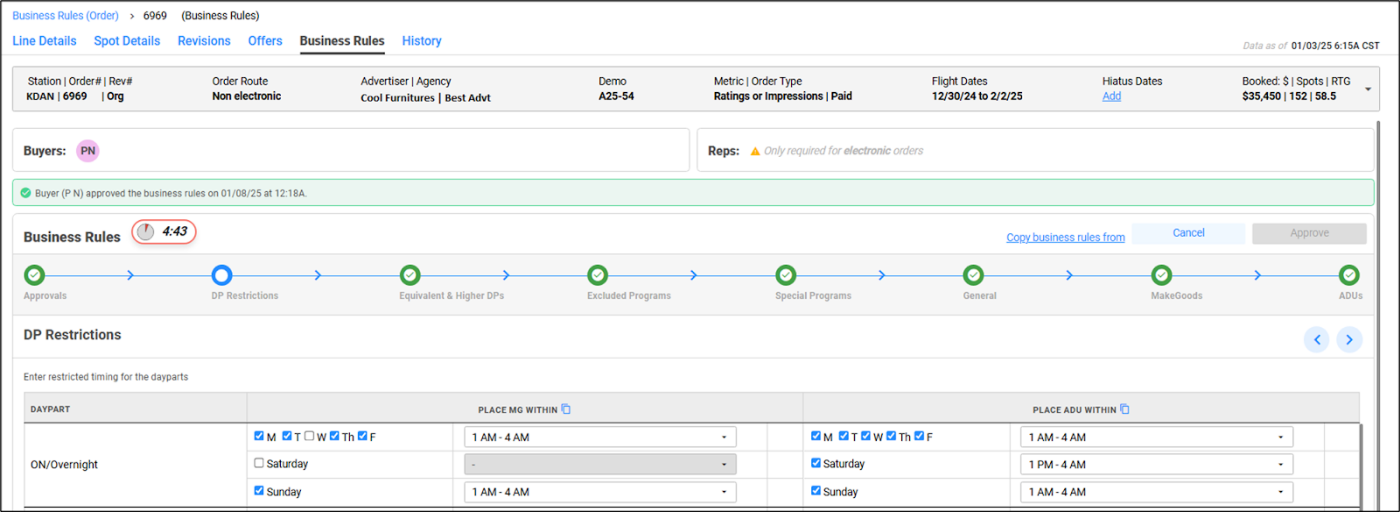
You can view the buyers involved with the advertiser and the order in the 'Buyers' section at the top.
The 'Copy business rules from' link can be used to copy selected or complete business rules values from any advertiser or order accessible to you. Additionally you can choose a particular set of rules to be copied from these as well. After copying, the business rules can be reviewed and edited.
Similar to the Advertiser Business Rules tab, an action timer is active here as well. During your editing session, no other user (seller or buyer) can modify the business rules.
Rep users will have view-only access to specific advertisers and orders and cannot modify or act on the business rules.
When the advertiser of an order changes
- If the order had custom business rules, it will retain those rules and remain classified as "Custom."
- If the order was inheriting business rules from the advertiser, it will update to match the new advertiser's business rules and continue inheriting from them.
After the initial changes, any incremental changes made by the seller or the buyer will be tracked and highlighted. You can use the toggle to view the same.
Order Business Rules flow
Once the Buyer gets access to the advertiser business rules, they have the option to update the order business rules as well. The Buyer then reviews, edits or approves the business rules on EOS.
The approved orders can be further edited by the seller and buyer as needed. The approved Order Business Rules are used to find appropriate offers from the next revision cycle.
Order Business Rules table
| Column | Description |
|---|---|
| STATION | Name of the Station the Order belongs to. |
| STN ORDER#-REV# | The order number in WO Traffic followed by the latest revision number of the Order. |
| ALT/REP ORDER # | The alternate or rep number to identify orders. The order number in WOC, Darwin or Medialine. |
| ESTIMATE# | A tracking number assigned by the agency for an order. |
| PRODUCT CODE | The category that the advertised product falls in to. |
| IDENTICAL TO ADV BIZ RULES | Indicates if the Order is inheriting the advertiser business rules or has order specific changes. |
| APPROVED BY | Name of the user who approved the rules. |
| APPROVED ON | The date on which the business rules were approved. |
| AUDIENCE POSTING REQUIRED | Indicates if the order requires audience posting or not. |
| PRIMARY AE | The primary account executive associated with the order. |
| ORDER ROUTE | Indicates the route via which the Order was processed. Possible values: Non electronic, WOC Unlinked, Medialine, Darwin, WOP, WOZ, Others. |
| BUYERS | Buyers associated with the Order. |
| REPS | Reps involved with the Order. |
| AUTOMATION | Current automation status of the order. |
| ADVERTISER | The advertiser for the order. |
| START DATE | The start date of the order. |
| END DATE | The end date of the order. |