Advertiser
In order to set the Advertiser Business Rules, navigate your way to the 'Business Rules' menu and select the 'Advertiser' tab.
You can select the Ownership Group and Station in the dropdown to view the list of Advertisers within the station. On selecting a station, the list of Advertisers under that station that are relevant to you will be displayed. You can also select the "Show expired advertisers" checkbox to view past advertisers. You can click on any Advertiser's name to set the Business Rules. You can use the business rules wizard to navigate between different categories of the business rules.

Approving advertiser business rules
The Seller approves and shares the custom Advertiser Business Rules for buyer review. At this stage, you can 'edit' the business rules further if required and approve the changes.
As soon as you approve you will have the options to select which orders of the advertiser will inherit the advertiser rules and which need change in rules at an order level.
By clicking on the 'Inherit & Approve Now' button the selected orders will inherit the same business rules as the advertiser. Else, if you click on 'Retain Existing' these particular orders will be excluded for further customization and you can make changes to them individually in the 'Order' tab under 'Business Rules' menu. After editing the business rules, you can Approve the changes.
Subsequently, the 'Approved' orders can be further edited by both the seller and the buyer as needed.
During subsequent changes, you can choose 'Inherit & Approve Now' for the orders to adopt the updated business rules, or select 'Retain Existing' to keep the previous rules. Alternatively, you can set custom business rules for the order by selecting 'Edit'.
The approved advertiser business rules are then inherited across all associated orders. Furthermore, you retain the ability to modify the business rules even for orders.
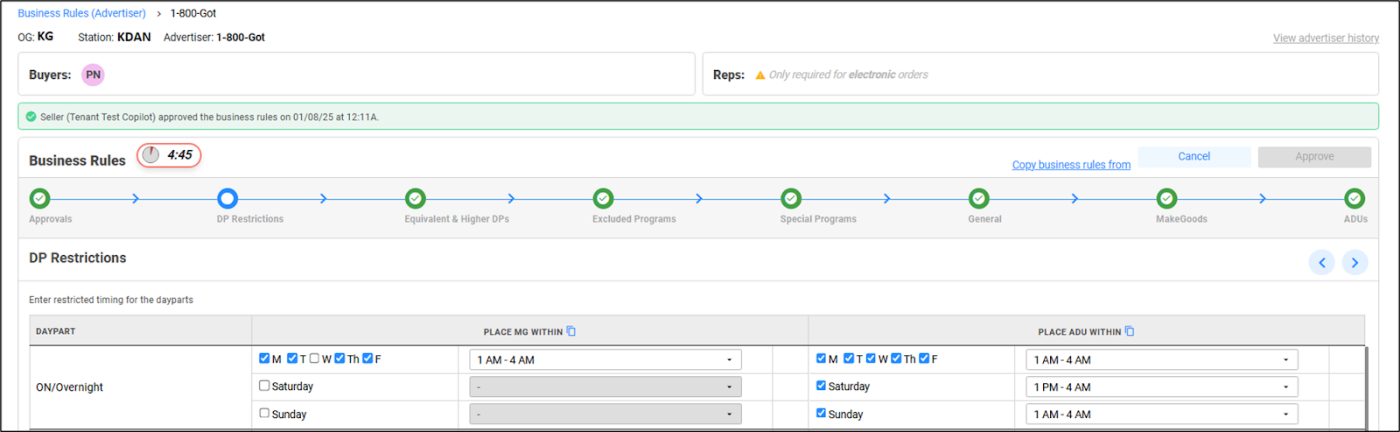
You can view the buyers involved with the advertiser in the 'Buyers' section at the top.
Rep users will have view-only access to specific advertisers and orders and cannot modify or act on the business rules.
Tracking and copying rules
After the initial changes, any incremental changes made by the seller or the buyer will be tracked and highlighted. You can use the toggle to view the same.
For ease of access, the 'Copy business rules from' link can be used to copy selected or complete business rules values from any advertiser or order accessible to you. Additionally you can choose a particular set of rules to be copied from these as well. After copying, the business rules can be reviewed, edited if needed and then saved.
Every time the business rules are updated and saved, they get tracked in the history. By clicking on the 'View advertiser history' link located in the top right corner, you can access a comprehensive log of all updates made along with their respective details. This history will also keep a track of all edits or approvals provided by the Seller.
Edit lock and timer
When you click 'Edit', a pop-up will appear to notify you about the timer. Pressing 'Click here' starts a 5-minute countdown, which resets whenever you modify the business rules. While editing, only you can make changes — the rules are locked to other users (including sellers). They can only view the rules during your session. Once you click 'Cancel', or 'Approve', the lock is lifted. If the timer expires without action, simply select 'Click here' in the pop-up to refresh the page and switch to view mode.
Advertiser Business Rules flow
The Seller or Buyer can determine which orders will inherit the advertiser business rules and be approved immediately, and which orders will require custom business rules. This is done using the 'Inherit & Approve Now' and 'Retain Existing' options.
The approved orders can be further edited by the seller and buyer as needed. The approved business rules will be used to provide offers in the upcoming cycle.
Advertiser Business Rules table
| Column | Description |
|---|---|
| STATION | The station which the order belongs to. |
| ADVERTISER | The advertiser for the order. |
| SELLER | The Seller associated with the order. |
| STATUS | Current Status of the Order Business Rule. |
| APPROVED ON | The date on which the business rules were approved. |
| APPROVAL BY | Name of the user who approved the rules. |
| AUDIENCE POSTING REQUIRED | Indicates if the advertiser requires audience posting or not. |
| BUYERS | The buyers involved with the advertiser. |
| REPS | The reps involved with the advertiser. |