Spot Details
Filters

- Period: You can choose one quarter or month at a time. The available options also include a custom range. You can also choose to view details for all spots of the order for the entire flight period of the order.
- Demo Normalization: This option can be turned on or off. If turned on, you need to choose the normalized demo.
Easy filters
EOS offers 'easy filters' to quickly filter spot data based on the most frequently used categories. These include:
- Booked: All booked spots for the order in the selected time frame. Includes all booked, preempted and late spots.
- Aired: All aired spots for the order in the selected time frame. It includes both normal and conflicted aired spots.
- Posted: All spots of the order with Posted data in the selected time frame.
- Scheduled: All placed spots for the order in the selected time frame.
- To be Scheduled: All preempted or displaced spots that are yet to be made good.
- Dropped: All credited, unresolved and preempted & made good spots.
- Late Runs: All late run spots.
Grouped Preemptions & MakeGoods: To simplify your analysis, click on the "Grouped PEs & MGs" button to view groups of Preemptions and the corresponding offered MakeGoods together. This consolidated view streamlines the assessment of your advertising campaign's performance.
Clicking a selected easy filter the second time will unselect it.
Spot Details table

| Column | Description |
|---|---|
| SELLER LINE # | The Line number for the Spot on WO Traffic. |
| BUY LINE # | The Line number for the Spot from the rep or buyer tool. |
| SPOT# | The Spot number on WO Traffic. |
| ORIGIN | Spots can originate from various sources: those included originally with the order; EOS-provided MakeGoods or ADUs (Additional Delivery Units); Seller added MakeGoods or ADUs; Buyer modified (added/deleted) spots. |
| SPOT STATUS | Current status of the spot in the order as per WO Traffic. |
| INVENTORY CODE | The Inventory code associated with the spot. |
| BUYER PROGRAM | The Buyer program name associated with the spot. |
| SELLER PROGRAM | The Seller program name associated with the spot. (Rep/Electronic orders) |
| LEN | The spot length in seconds. |
| BOOKED RATE | The booked rate of the spot. |
| BOOKED RTG | (Order metric: Rating) The total booked rating for the spot. |
| BOOKED IMPS('000) | (Order metric: Impression) The total booked impressions for the spot. |
| NORMALIZED BOOKED RTG | (Normalization filter set to yes) The total normalized booked rating for the spot. (Order metric: Rating) |
| NORMALIZED POSTED RTG | (Normalization filter set to yes) The total normalized posted rating for the spot. (Order metric: Rating) |
| NORMALIZED BOOKED IMPS('000) | (Normalization filter set to yes) The total normalized booked impressions for the spot. (Order metric: Impression) |
| NORMALIZED POSTED IMPS('000) | (Normalization filter set to yes) The total normalized posted impressions for the spot. (Order metric: Impression) |
| POSTED RTG | The total posted rating for the spot. |
| PROJECTED RTG | Projected ratings derived from posted information or the ANNA estimates. |
| POSTED IMP('000) | The total posted impressions for the spot. |
| PROJECTED IMP('000) | Projected impressions derived from posted information or the ANNA estimates. |
| DP | The Daypart associated with the spot. |
| START & END TIME | Start & end time within which the spot can air. |
| Sch. WEEK | The week in which the spot is scheduled. |
| Sch. DAY | The day on which the spot is scheduled. |
| AIR STATUS | This can have 2 values for already aired spots: Normal, Conflicted. |
| AIR DATE & TIME | The date & time at which the spot had aired. |
| AIRED PROGRAM | The program where the spot ultimately aired. |
| SEE MG | This column has values against preemptions that have been madegood. The spot number of the MakeGood(s) can be found here. |
| MG FOR | This column has values against MakeGood spots. The spot number of the preemption(s) for which this MakeGood was provided can be found here. |
| AD-ID | The unique identification for ad to be placed for this spot. |
Metric dropdown
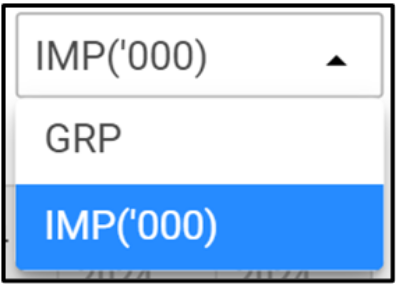
You can select the metric to view the Spot details data, such as Booked and Posted Impressions or ratings, using the metric dropdown provided at the top right corner. The primary metric of the order will be selected by default.
Column filter and sorting
EOS allows you to filter and sort information in one or more columns, providing you with the flexibility to customize your data analysis. To reset all selected filters on the page, use the "Reset all filters" button.