Order Details - Order Summary
Accessing Order Summary
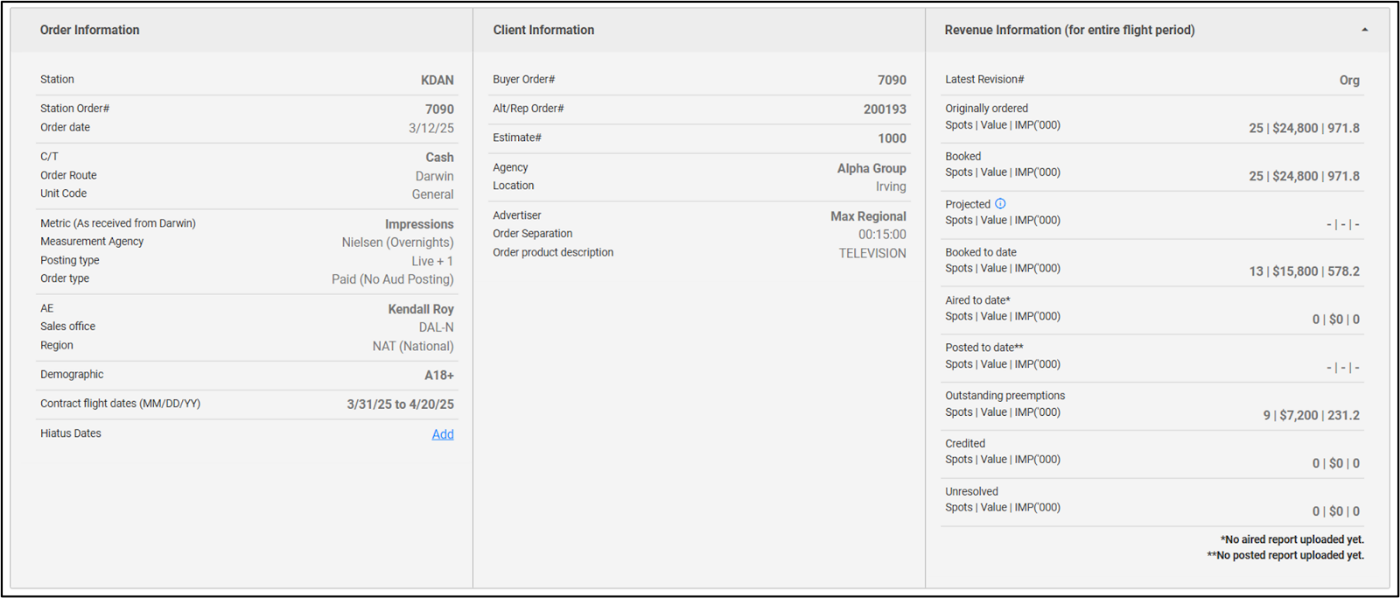
At the top of any tab within an order, you will find an order summary. Clicking the summary pane expands the view, displaying essential information about the order information, client information, and revenue information. This allows you to view the key parameters of the complete order at a single glance for the entire flight period.
The summary consists of the following information.
1. Order information
| Field | Description |
|---|---|
| Station | The Station name. |
| Station Order# | The order number in WO Traffic. |
| Order date | The date when the order was onboarded on EOS. |
| C/T | Identifies whether it is a Cash or Trade order. |
| Order route | The source of the order (WO Traffic/WOC Unlinked/Medialine/Darwin/Rep). |
| Unit Code | Unit code of the order. |
| Metric | The primary order metric of the order (Rating/Impression). |
| Measurement Agency | The audience reporting agency for posted data along with the data types. |
| Posting Type | The latest Posting type applicable for the order. |
| Order Type | Indicates if it is a Paid or UD Order. Possible values: Paid (Aud Posting), Paid (No Aud Posting), UD (Liability not set), UD (Liability set), UD. |
| AE | The primary Account Executive associated with the order. |
| Sales office | The sales office or sales office code. |
| Region | Indicates whether the order is National/Local. |
| Demographic | The primary demographic of the order. |
| Contract flight dates (MM/DD/YY) | The flight dates of the order. |
| Hiatus dates | The hiatus dates within the flight period of the order. |
2. Client information
| Field | Description |
|---|---|
| Buyer Order# | The order number assigned by DARE or ePort. |
| Alt/Rep Order# | The alternate or rep number to identify orders. The order number in WOC, Darwin or Medialine. |
| Estimate# | A tracking number assigned by the agency for an order. |
| Agency | The advertising agency for the order. |
| Location | The location of the advertising agency. |
| Advertiser | The advertiser for the order. |
| Order Separation | The order separation for the order. |
| Order product description | A description of the product on the order. |
3. Revenue information (for entire flight period)
| Field | Description |
|---|---|
| Latest Revision# | The latest revision number on EOS. |
| Originally ordered — Spots | Value | GRP / Impressions | The originally ordered number of spots, dollar value and GRP (order metric: Rating) or impressions (order metric: Impression) for the order. |
| Booked — Spots | Value | GRP / Impressions | The total booked number of spots, dollar value and GRP or impressions for the order. |
| Projected — Spots | Value | GRP / IMP('000) | The total projected number of spots, dollar value and GRP or impressions for the order. |
| Booked to date — Spots | Value | GRP / Impressions | The total booked number of spots, dollar value and GRP or impressions for the order for the current quarter, booked as per the latest revision cycle. |
| Aired to date* — Spots | Value | GRP / Impressions | The total number of spots, dollar value and GRP or impressions aired for the order. |
| Posted to date** — Spots | Value | GRP / Impressions | The total number of spots, dollar value and GRP or impressions posted as of the latest posted report. |
| Outstanding preemptions — Spots | Value | GRP / Impressions | The total number of Preempted spots, dollar value and GRP or impressions for the order as per the latest revision cycle that are yet to be made good. |
| Credited — Spots | Value | GRP / Impressions | The total number of credited spots, dollar value and GRP or impressions for the order as per the latest revision cycle. |
| Unresolved — Spots | Value | GRP / Impressions | The total number of unresolved spots, dollar value and GRP or impressions for the order as per the latest revision cycle. |
Below the Revenue information, we also mention the last date till which the aired and posted data report was uploaded on EOS against each order.
Hiatus Dates
The Hiatus dates are the dates when ANNA does not provide any MakeGoods or ADUs, or when the buyer does not want to play any Makegoods or ADUs.
In the Order summary, you can 'Add' or 'View' the hiatus dates for the orders you have access to and submit them for entry on WO Traffic for sales manager approval. Hiatus dates can be set only within the flight period of the order. You can also view the seller's comments on these dates.
You cannot edit the hiatus dates while the entry is in progress. Editing is only possible after the dates have been entered in Traffic. Additionally, you can edit the dates further after they have been approved by the Sales Manager on WO Traffic.
For automated orders, hiatus dates will not be entered on WO Traffic if an order has an ongoing revision. Moreover, no new revisions will be generated for an order, even if they have preemptions or under-delivery, if the hiatus dates have not received sales manager approval.
At the top right corner of all the Order Details tabs, the PoD and Automated icons will be displayed based on the seller's selections.