Offers Awaiting Approval
An order goes through multiple changes throughout its life cycle that could include preemptions, addition of makegoods and additional delivery units.
To compensate for and recover preemptions and under-deliveries, ANNA suggests multiple offers. These offers can be found in the 'Offers Awaiting Approval' tab which has all the offers, approved by the Seller, sorted based on the revision status.
In order to navigate to these offers, click on 'Orders' on the sidebar menu and select the 'Offers Awaiting Approval' tab.
These revisions keep track of all updates on the order and follow a systematic flow that requires your approval based on the business rules configuration previously set by you.
Filters

- Ownership Group: You can select one Ownership Group at a time.
- Equivalized Data: You can view the data equivalized to standard length. This option can be turned on or off.
You can filter out orders in a particular revision state by using the easy filters (multi-select). All orders awaiting your approval will be listed on top by default. A count bubble displays the number of offers requiring your attention for non-electronic orders.
You can view the cumulative total of offered makegoods and additional delivery units for all orders in the total row. Likewise, you can also take a look at the outstanding preemptions and under-delivery to be picked up in the next revision.
Offers Awaiting Approval table

| Column | Description |
|---|---|
| STATION | The station which the order belongs to. |
| STN ORDER#-REV# | The order number in WO Traffic followed by the latest revision number of the Order on EOS. |
| ALT/REP ORDER # | The alternate or rep number to identify orders. The order number in WOC, Darwin or Medialine. |
| BUYERS | The buyers associated with the order. |
| REPS | The reps associated with the order. |
| PRIMARY AE | The primary account executive associated with the order. |
| REGION | Indicates whether the order is National, Local or Regional. |
| AGENCY | The agency associated with the order. |
| LOCATION | The location of the advertising agency. |
| ADVERTISER | The advertiser for the order. |
| START DATE | The start date of the order. |
| END DATE | The end date of the order. |
| REVISION START DATE | The start date of the present revision. |
| TIMEOUT DATE & TIME | The date and time by which the Buyer has to take action on the revision. |
| OFFER COUNT | The total count of all offers across all statuses. |
| STATUS | The order's revision status at a specific point in time. |
| OFFERED MG | The total offered MakeGood dollar value for the order (includes both preemptions and unresolved spots) in this revision. |
| O/S Spots | The total Outstanding spots dollar value for the order (includes all outstanding and unresolved spots). |
| OFFERED ADUs | The total value of the ADUs offered in the order in terms of dollar value. |
| O/S UD PROJ | The total outstanding under-delivery (Projected) yet to be recovered in terms of dollar value. |
| Credit ADUs | The total value of the spots that are getting credited. |
Order specific information can be accessed from the table and by clicking on any row, you can go inside and see all offered spots for an order.
Order revision flow
An order goes from the 'Seller Pending' state to the 'Buyer Pending' state when the spots are auto-approved or explicitly approved by the Seller. In the event that you fail to take action within the cut-off time on the order revision, all the spots that need your approval are auto-rejected.
This auto-approval is based on the 'Buyer Approvals' selection under business rules and is only applicable to direct orders.
All spots for orders with route WOC, Darwin or Medialine will be fed into the respective tool and will require approval.
After being reviewed by both the Seller and Buyer, the approved spot changes are entered in Traffic and the revision then goes to the 'SM Pending' status. Only following the Sales Manager's approval, are the spots then fed into the traffic system. If the Sales Manager does not approve the spots, the revision moves into a temporary revision state and remains that way until the Sales Manager approval is received.
The Sales Manager approval status is fetched from the traffic platform and updated.
Once the revision for the order is generated, it changes to a 'Rev Generated' state by the end of sunset.

- MGs and ADUs offered will be entered on WO Traffic either in combination or independently depending on the business rules set for spot approvals by the seller.
- For a program, the makegoods offered will depend on whether the preemption is for the original or a repeat broadcast of that program.
- ANNA doesn't provide ADUs below 10 seconds even if there is a shortfall.
- For providing offers, ANNA considers preempted spots and the under-delivery ratings of automated orders only.
- If there is any manual intervention, ANNA will not continue with the entry process and the appropriate status (user confirmed, user cancelled, user edited etc) will be displayed.
If the Seller or Buyer fail to take action before their respective state or if all the offers suggested are rejected by the sales manager, the revision is then discarded.

An order can move directly from one state to another based on the approval required according to the Business Rules set prior. The relevant makegoods for preemptions and unresolved spots individually as well as in groups (provided they are in 'In-flight' status) are offered based on the business rules set, as well as suggesting additional delivery units also known as ADUs to cover for any audience shortfall. The outstanding preemptions as of that revision are also listed.
Order Revision Status table
| Order Revision status | Description |
|---|---|
| Buyer Pending | Seller approved spots are awaiting review by the Buyer. |
| SM Pending | Final approved spots by the Buyer are awaiting review and approval by the Sales Manager on WO Traffic. |
| Revision Generated | Sales Manager approvals are fetched from WO Traffic and a revision is generated. |
| Revision Discarded | A revision got discarded either due to time-outs or rejection of all spots offered. |
Taking action on offers
Once you go within an order, a summary of the total offered MakeGoods, additional delivery units, and the outstanding spots is provided for easy and quick access. The count of offers requiring your attention is displayed for each status. The station name along with the latest revision date and time are shown for the order.
The 'Buyer Rejected' easy filter will be displayed if there is a spot in buyer rejected status.
By clicking on any order revision, you can review and take actions on the offers.
- You can approve or reject the offered and added MakeGoods and ADUs.
- ADUs will be available for buyer's approval based on the business rules set.
- ADU and O/S spots will not be displayed for direct orders.
- You cannot take actions on Outstanding Preemptions but can view them.
- For direct orders, you can approve or reject O/S PE spots marked for credit.
- A timer is present to keep track of inactivity which will reset whenever any actions are taken.
- If the user either leaves the page, clicks on 'Submit', or the timer expires due to inactivity, the edit lock will be released.
- You can submit your approvals by clicking on the 'Submit' button at the end.
- The buyer approval has a timeout associated with it. If the offers aren't approved within the specified time, they will be auto-rejected.
- The offers made adhere to the Order separation fetched from the WO Traffic.
- The status of the ANNA offered MakeGoods will be 'Unresolved' and 'Offered MG' while the status of the offers created for unresolved spots will be 'Unresolved' and 'Added MG'.
- O/S PE Spots, Unresolved spots that haven't been acted upon won't be displayed.
- Rejection comments, if any, are displayed next to each offer.
In addition to Standard and Relaxed business rules, ANNA also applies a "Diluted" approach internally to offer solutions for preempted and unresolved spots under even more flexible conditions, maximizing offer solvability.
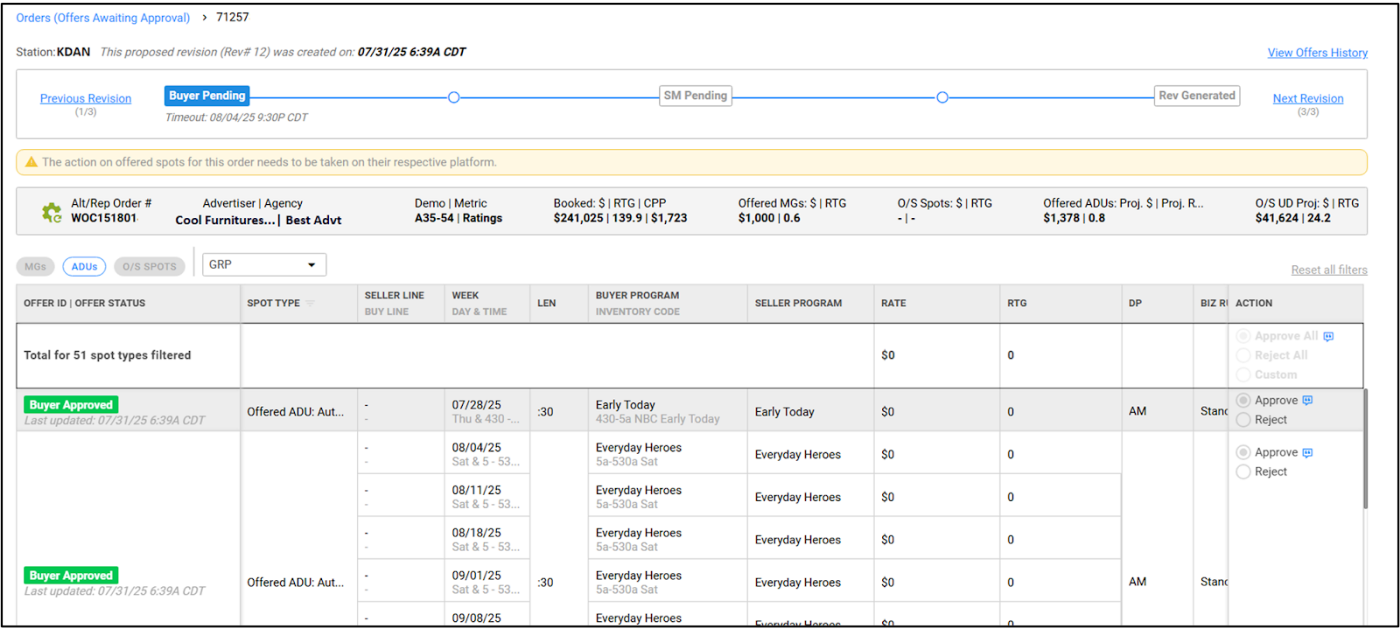
Summary
| Field | Description |
|---|---|
| Alt/Rep Order # | The alternate or rep number to identify orders. The order number in WOC, Darwin or Medialine. |
| Advertiser | The advertiser for the order. |
| Agency | The advertising agency for the order. |
| Demo | The target demographic for the order. |
| Metric | The Order metric (Ratings/Impressions) of the revision. |
| Booked: $ | RTG | CPP / IMPS | CPM | The booked dollar value, and ratings and cost per point (order metric: Rating) or impressions and cost per mille (order metric: Impression) for the order. |
| Offered MGs: $ | RTG / IMPS | The offered MakeGoods in terms of dollar value and ratings (order metric: Rating) or impressions (order metric: Impression). |
| O/S Spots: $ | RTG / IMPS | The outstanding spots in terms of dollar value and rating (order metric: Rating) or impressions (order metric: Impression). |
| Offered ADUs: Proj. $ | Proj. RTG / Proj. IMPS | The offered ADUs in terms of projected dollar value and projected ratings (order metric: Rating) or projected impressions (order metric: Impression). |
| O/S UD Proj: $ | RTG / IMPS | The outstanding Projected under-delivery in terms of dollar value and rating (order metric: Rating) or impressions (order metric: Impression). |
Spot level information of revisions
| Column | Description |
|---|---|
| OFFER ID | The Offer ID received from the rep platforms. Incremental offer IDs are provided for non-electronic orders. The prefix of the offer ID indicates its source. |
| OFFER STATUS | The current status of the offer. Possible values: Buyer Pending, Buyer (Rep) Pending, Buyer (Agy) Pending, Buyer Approved, Buyer Rejected, Buyer Timed-out, Buyer Timed-out (Log closed), SM Pending, SM Approved, SM Rejected, WOT Entry in Progress, WOT Entry Failed, WOT Entry Failed (retrying…), Confirm in Progress, Confirmed, User Confirmed, User Cancelled, User Edited, User Edited & Confirmed, User Edited & Cancelled, User Station Cancelled. |
| SPOT TYPE | The spot type. Possible values: Offered MakeGood, Offered ADU, Offered MakeGood: Auto-approved, Offered ADU: Auto-approved, Rejected MakeGood, Rejected ADU, Outstanding Preemption, Outstanding Preemption: Marked for Credit, Preemption: Marked for Credit, Added MakeGood, Unresolved, Booked ADU. |
| SELLER LINE | The line number for the spot on WO Traffic. |
| BUY LINE | The line number for the spot on Rep/Buyer tool. |
| WEEK | The date of the week where the spot is to be placed. |
| DAY & TIME | The day and time of the week the spot is to be placed. |
| LEN | The duration of the spot. |
| SELLER PROGRAM | The Seller Program mapped for the spot. |
| BUYER PROGRAM | The Buyer Program Name for the spot. |
| INVENTORY CODE | Inventory code of the program. |
| RATE | The booked rate of the spot. |
| RTG | The booked ratings for the spot. (Order metric: Rating) |
| IMPS | The booked impressions for the spot. (Order metric: Impression) |
| DP | The daypart for the spot. |
| BIZ RULE | Type of Business Rules: Standard/Relaxed/Diluted. |
| ACTION | Actions to be taken by the Buyer (Approve/Reject). |
Each revision has a 'View Offers History' hyperlink on the top right that takes the user to the 'Offers' tab within the order's details, where they can also take a look at the order's line details, spot details and other specifics.